Agenda: In this blog, you will learn about monit and M/monit and also on how to get started with them.

MonitMonit! As the name states, it is tool which is used to monitor. Okay so the next question would be what will it monitor? Monit can monitor files, directories, resources, services and many more.
How? Let’s see how to get monit up and running on Ubuntu.
sudo apt-get install monit -y
Now, all you need to do is edit the configuration file for monit.
sudo vim /etc/monit/monitrc
Navigate to the line which says “set httpd port 2812 and” un-comment the block. I’m changing the port to 2813 just to show that it runs on the port which we specify. This is how it should look. Ideally it should be 2812.
set httpd port 2813 and
      use address localhost
      allow localhost
      allow admin:monit
Save the file and exit. Now the next step is to reload the monit. Go to the browser and types the address: localhost:2812
You will be asked to log-in .
Default Username: admin and Password: monit and you should be seeing monit’s home page.
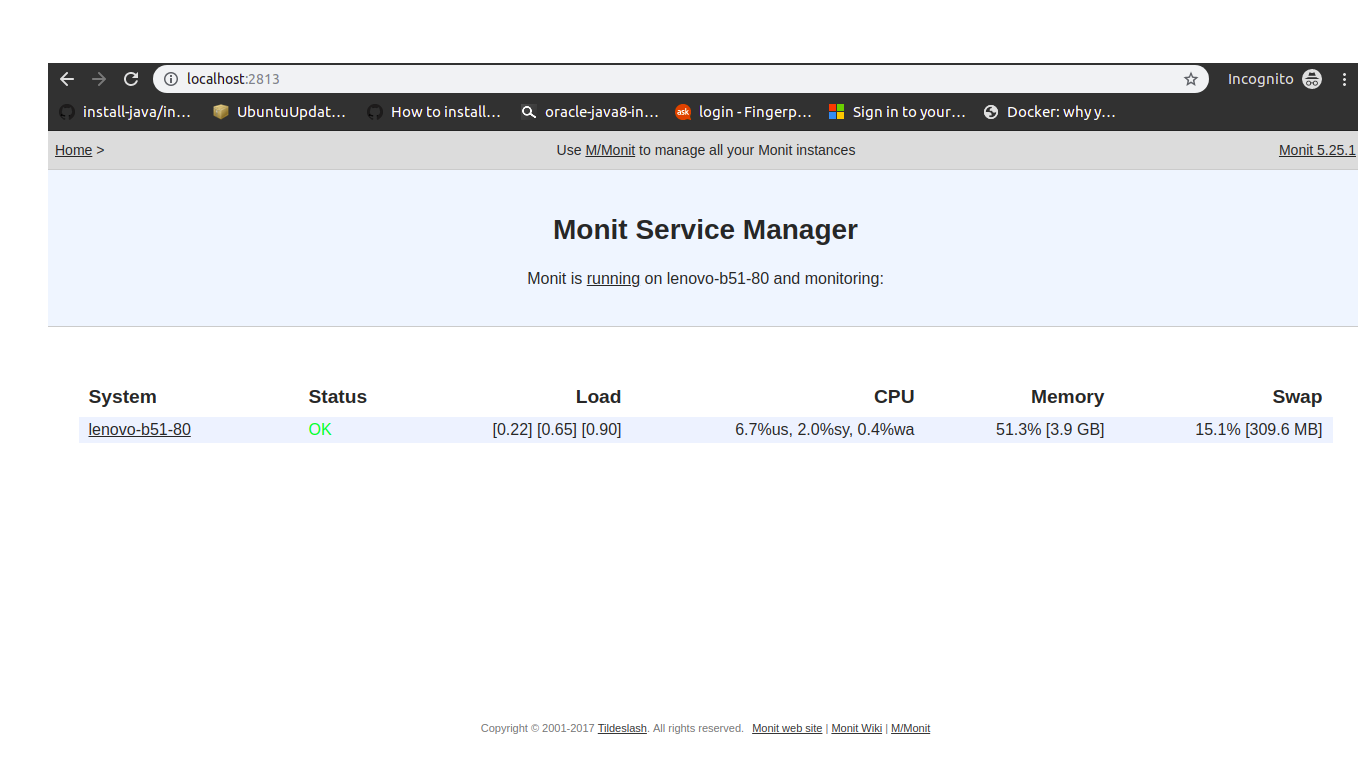
Okay! That wasn’t tough.

Now, let us suppose that we want to monitor Postgresql service.
cd /etc/monit/conf-enabled/
Create a new file with name postgresql and paste the snippet.
check process postgresql with pidfile /var/run/postgresql/9.6-main.pid
     group database
     start program = "/etc/init.d/postgresql start"
     stop  program = "/etc/init.d/postgresql stop"
Now, reload the monit.
sudo monit reload
Now, you can see postgresql being monitored.

You cant start, stop, restart and disable/enable monitoring postgresql. You can see the process status for postgresql service. So far smooth right? Monit actually monitors using the pid of a service.


Wait a minute. What if it’s a custom service and doesn’t have a pid file? Does that mean monit doesn’t monitor that? No! Monit can also monitor a custom service under the condition that the process name is unique.
Example:
check process airflow-scheduler
      matching "airflow scheduler"
      start program = "/usr/bin/sudo service airflow-scheduler start"
      stop  program = "/usr/bin/sudo service airflow-scheduler stop"

Monit can monitor files, directories, resources . . .we can have a long list. Active mode in monit is about restarting the service if it is not active and the opposite goes for passive mode. We have placed the file postgres in the path /etc/monit/conf-enabled/ to avoid unnecessary complexity in the monitrc. So, we can include the directory of choice in the monitrc file (at the bottom).
Now, let us get started with M/Monit. M/Monit is a centralised monitor which monitors all the hosts which are injected with monit. Wait! What?
Let us take a look visually.

Till now we have seen monit on a single host. Let us suppose we have six servers. We inject monit on all the six servers but how do you monitor? It is taxing to type in the i.p of all the servers and port numbers. This is where M/monit comes into play. It monitors all the servers injected with Monit. All we need to do is a small configuration change in the monitrc file after installing M/Monit.
Installing M/Monit. You can download the tar here and unpack it.
wget https://mmonit.com/dist/mmonit-3.7.3-linux-x64.tar.gz
tar -xzf mmonit-3.7.3-linux-x64.tar.gz
And, starting M/Monit
./mmonit-3.7.3/bin/mmonit
By default, M/Monit runs at 8080 port. Go to your browser and type in localhost:8080
You can be able to see the UI of M/Monit now.

Default credentials would be Username: admin & Password: swordfish
When logged in, one can see that there won’t be any hosts. Now, a small configuration change in monitrc of the host will make sure that M/Monit will monitor the host injected with monit. Edit the monitrc file as . .
sudo vi /etc/monit/monitrc
Navigate to the line that says,
# set mmonit http://monit:monit@192.168.1.10:8080/collector
And un-comment it and replace the I.P with the host where M/Monit is installed, reload the monit
sudo monit reload
Log in or refresh the M/Monit UI and now you should be seeing a host.


Steps to follow . . .

Cool! Isn’t it? But what if you have to monitor 100 servers do you repeat these steps in every server? Of course, there are other soft wares for that.

 Getting Started With Monit and M/Monit